
1. Click View Cycle to see each module.

2. The JD Assessment module requires additional setup before it can be used.

3. Include your entire workforce in this module with Select All Employees.

4. Or individually click on the employees that you want to add.

5. Click Save Cycle Preferences to save the employee selection.

6. Click on the Module Settings to continue.

7. There are directions for the modules here. It also notes when emails are sent out to employees.

8. The module has two options to record the rating, either text or a number. This must be selected before the module is opened and cannot be changed once opened.

9. The next step is to assign a Job Description for each employee in the module.

10. You will first need to make sure all Job Descriptions are added to mozzo. Go to Job Description Builder to do this.

11. Access organizational settings to maintain consistency across all role definitions.

12. Add a custom duty that all employees in the JD Assessment will be rated on.

13. Click back to return to the main screen.

14. You can either use the existing library to create your job description or upload your own. To use the library, search for a title and then click on it to customize it.

15. Select a Data Analyst template to customize it.

16. Click Customize to tailor this job description to reflect your organization's specific needs and culture.

17. Decide whether to include your company overview in this role description.
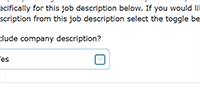
18. Specify the FLSA classification to ensure compliance and proper compensation structure.

19. Once the JD is finalized, click back to return to the main screen.

20. Select the Mass Upload if you have your finalized Job Descriptions as word documents.

21. Upload up to 50 word documents at a time. Each JD must be in it's own file.

22. Click Upload

23. Once the upload is complete, review and click customize to make any edits.

24. Return to Align Settings to complete the JD Assignments to all employees.

25. Revisit QPI Settings to assign job descriptions to individual employees.

26. Open your active cycle to begin connecting roles with team members.

27. Navigate to the Module Settings for the JD Assessment module.

28. Select the employee to assign the job description.

29. Click Assign Job Description

30. Browse available job descriptions to find their job title.

31. Click on the job title.

32. Select Save

33. Adjust the number of employees in the view.

34. Repeat for all employees until everyone has a Job Description Assigned.

35. Navigate to individual employee profiles for additional configuration.

36. Once all JDs are assigned, the note will change to say that you are ready to open the module.

37. The module can be opened 2 weeks prior to the start of the next quarter and up to 30 days after the start of the quarter.

38. Once the time restrictions have been met, the module will be able to be opened.
