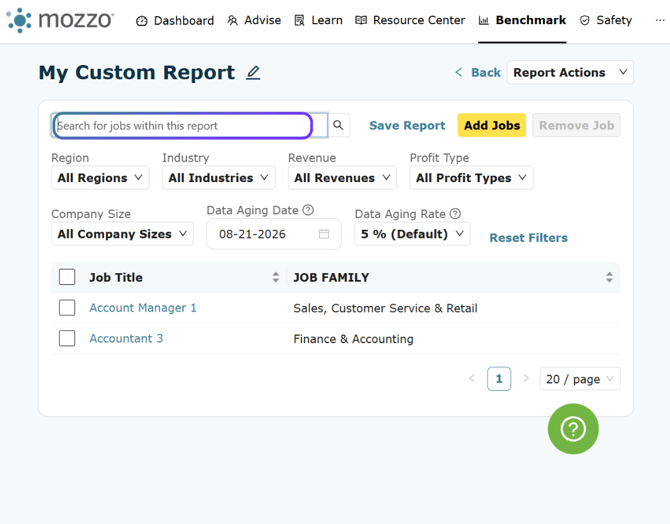
How to View, Manage, Create, and Download Job Reports
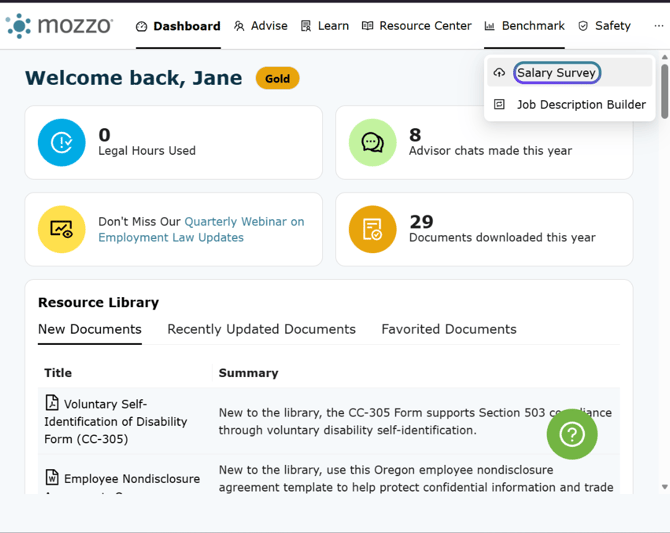
1. Click on Salary Survey, found under Benchmark on the top level navigation.
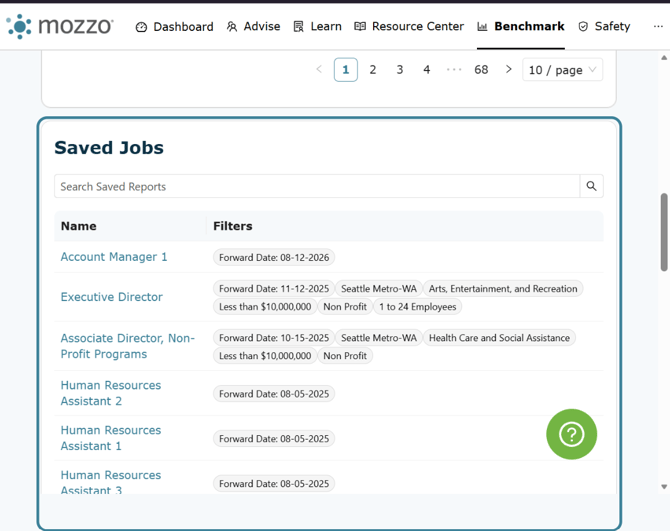
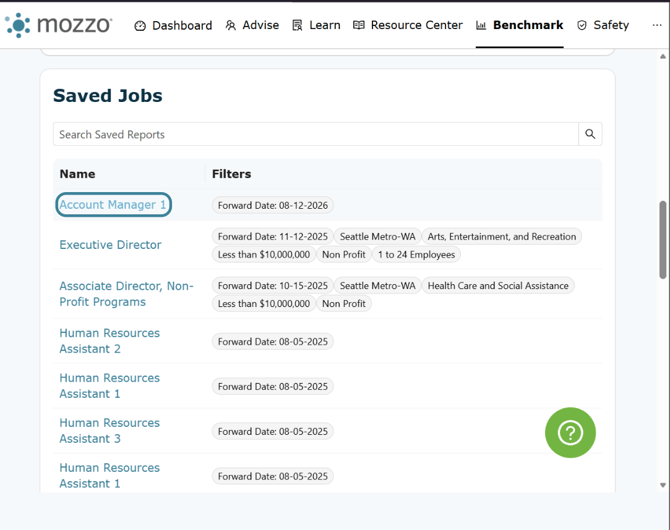
2. Scroll down to locate the Saved Jobs section. This section will contain any job reports saved by you.
You can save a job report from any of the job visualizations listed in the section above.
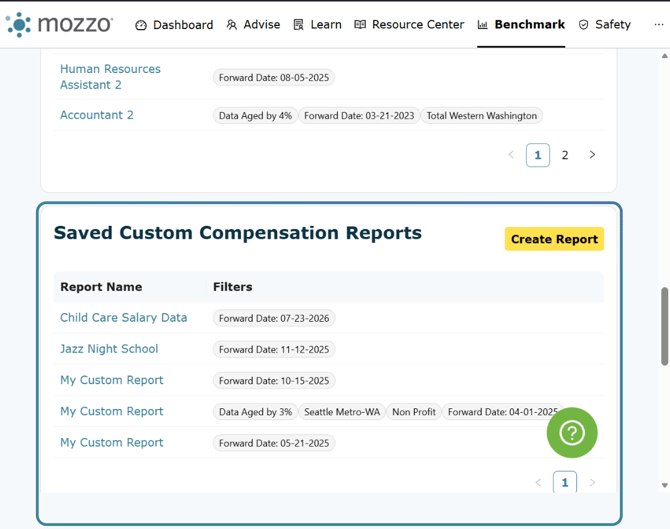
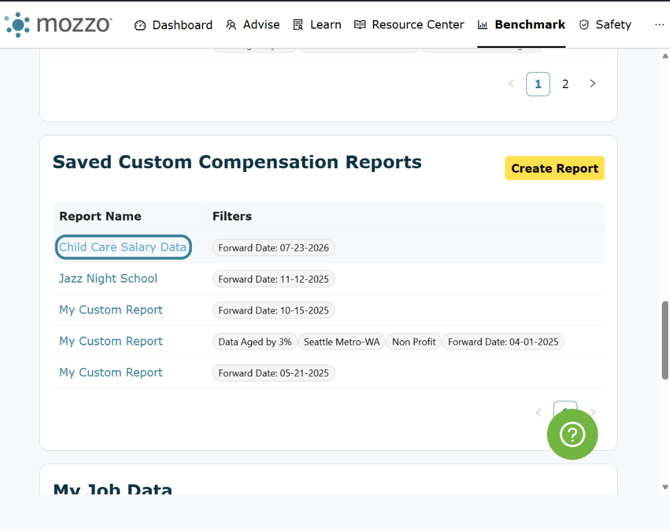
3. Below the Saved Jobs section, you will find your Saved Custom Compensation Reports.
A compensation report contains wage information on several different jobs that you create in the tool. This information is then available for download into a CSV file.
4. To view a saved job, click the Name.
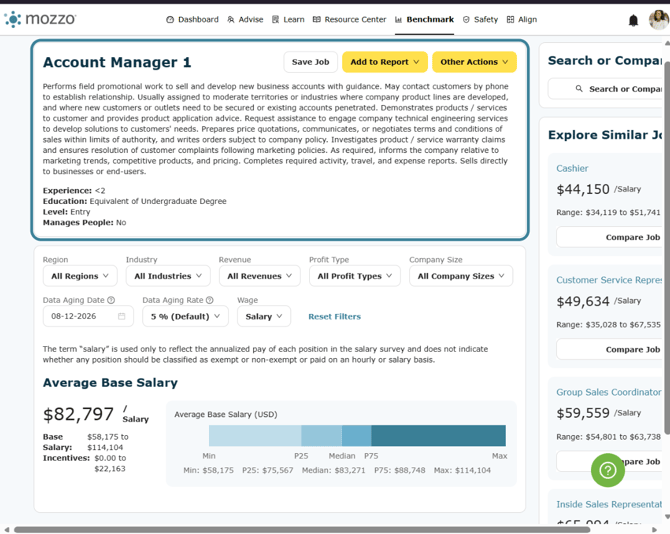
5. This will take you to a detailed view of the job's wage and compensation information.
6. To view a saved Compensation Report click on a Report Name.
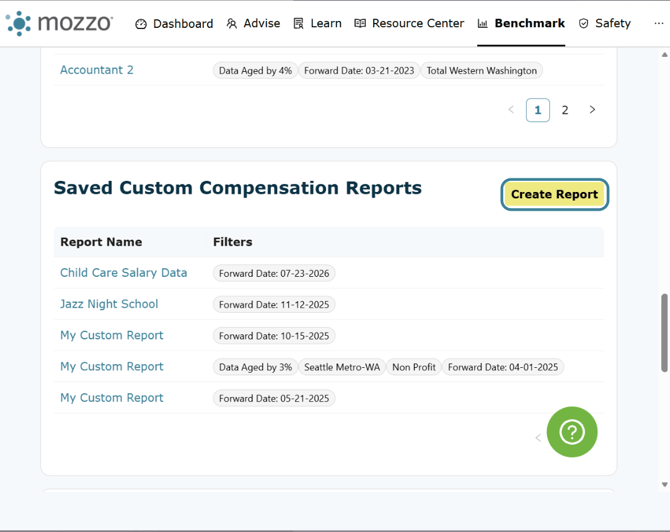
7. To create a new Compensation Report click on the Create Report button.
8. To add jobs to your Compensation Report click on the Add Jobs button.
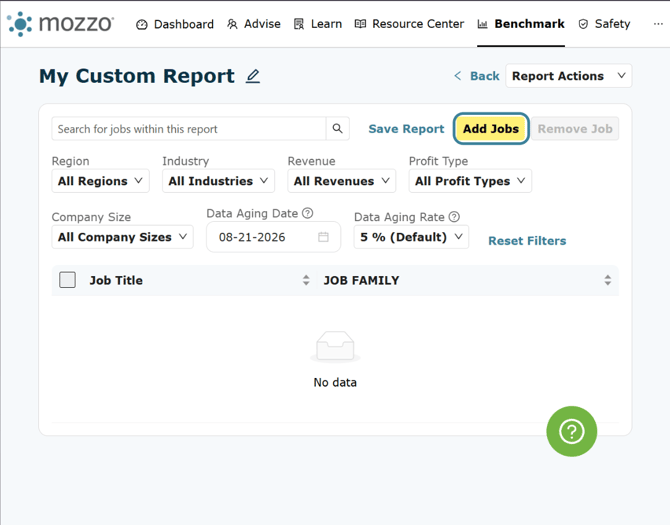
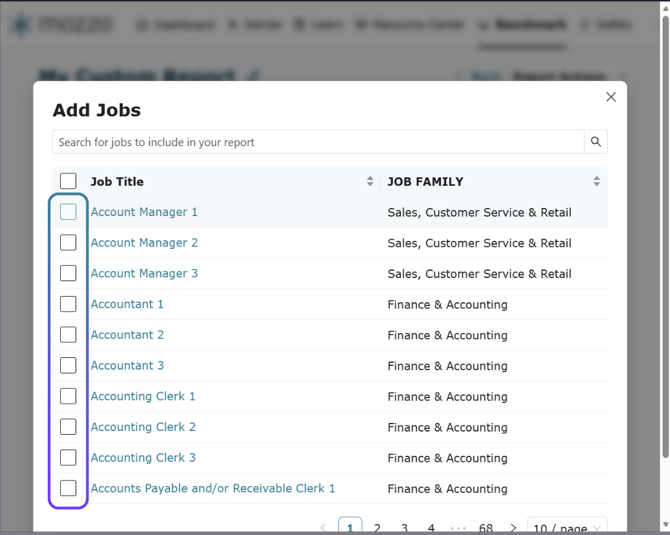
9. Select the jobs you want to add from the list provided.
You may also search for any job title in the search window provided. Select as many as you'd like.
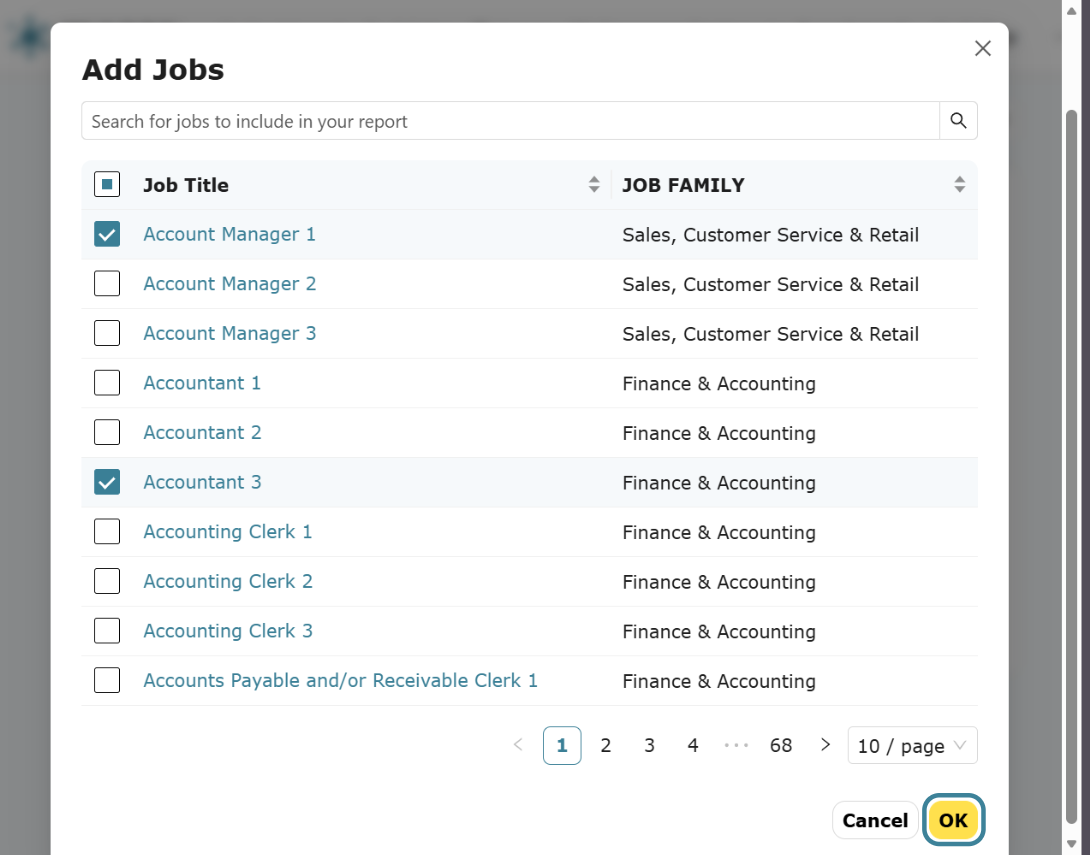
10. Click on OK to save your report.
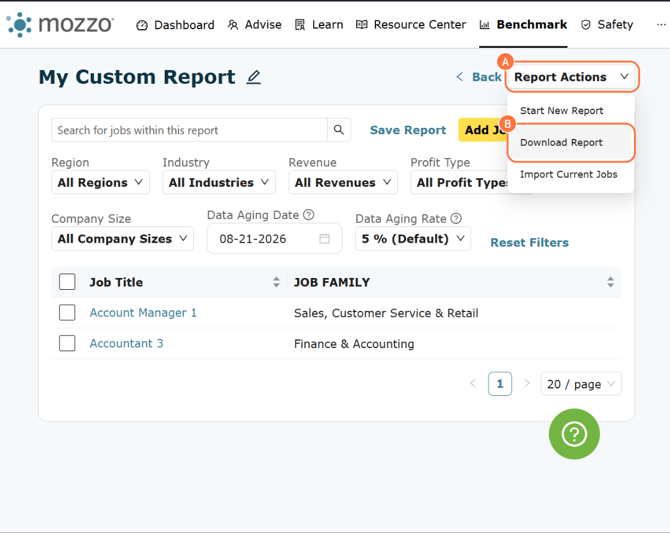
11. To download your report, click on "Report Actions" then "Download Report"
12. To change the name of your report click the pencil icon. Then enter the new report name, and press enter.
Then type in your new report name. Press enter.